Before you install
Is Catchr free?
Yes. Catchr has no price, no account, and no subscription. Its AI runs on your own key, and Gemini has a free tier.
Gemini's free tier has daily limits, and Google doesn't offer it on every account. If you hit a limit, the AI tools work again once it resets. Google won't charge you unless you turn on billing for your key yourself. Claude and ChatGPT keys work too, but they're paid: Anthropic or OpenAI bills you for what you use.
Why do I need my own AI key?
Your resume and the job description go directly from your browser to your chosen AI (Gemini, Claude, or ChatGPT) using your own key. They never pass through a Catchr data server.
You manage that key, and any AI charges, with the company that issued it. It's also why Catchr can be free: there's nothing for us to run or pay for. The setup guide walks you through getting a key.
What does a paid AI key cost?
You pay the AI company for what you use, at its own prices. Catchr charges nothing.
Claude and ChatGPT are pay as you go: each use draws from the credit on your account, so check you have some before you start. The setup guide suggests starting small, like $5. With Gemini, billing is optional in most places, and turning it on stops Google using your requests to improve its AI. Current prices: Gemini, Claude API, OpenAI API.
What can Catchr see in my Google account?
Only the files it creates for you and the files you pick. It can't see the rest of your Drive, your email, or anything else.
In practice that's your job tracker sheet, the resume you choose, and the tailored resumes and prep docs Catchr makes. They're all yours, saved in your own Google Drive.
Does anyone see my resume?
We never do. Catchr reads your resume in your browser and sends it only to the AI you chose, with the name and contact details it detects removed first.
The removal works by matching text, so it can miss details, and the rest of your work history may still identify you. If something must stay private, leave it out of the resume you use with Catchr. Each AI company handles what you send under its own terms. On Gemini's free tier, Google may use the rest (like your work history and skills) to improve its AI, and its reviewers may read it. Google's free-tier terms also say not to submit personal, confidential, or sensitive information, so if your resume contains any, turn on billing for your key's project first. The privacy policy has the full detail.
Which job sites does it work on?
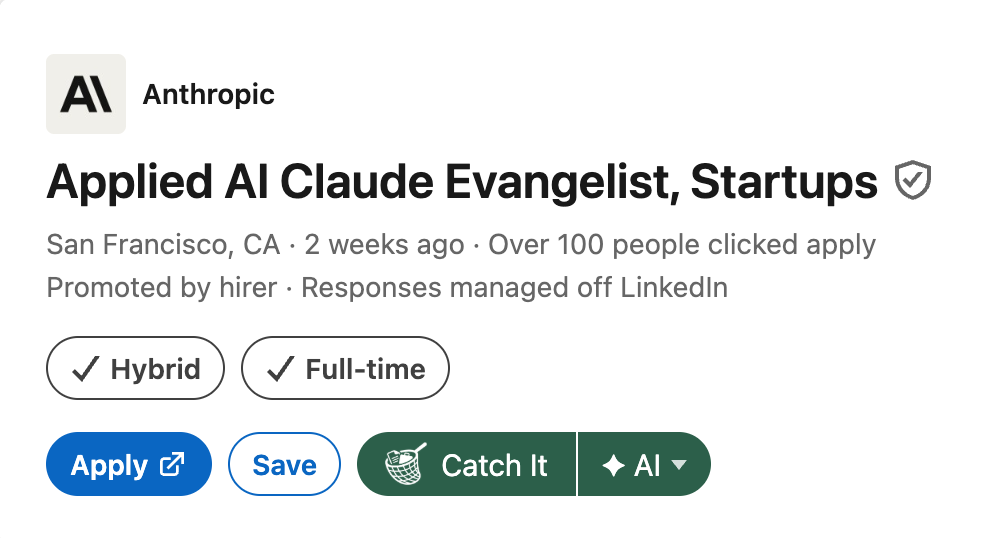
LinkedIn, Indeed, Greenhouse, Lever, Wellfound, and Ashby. On these sites, Catchr adds a Catch It button to the job posting. If you don't see it, click the Catchr icon in Chrome's toolbar.
On other job sites, use the toolbar icon too. If Catchr can't find the job description there, you can paste it in.
Using Catchr
Do I need a tracker template?
No. Catchr makes a ready-to-use Google Sheet for you the first time you catch a job.
The free tracker template is for people who'd rather start by hand, or already have one. To use your own sheet, open Catchr's Settings and click Connect next to Tracker sheet.
How accurate is the fit score?
It's a guide, not a verdict. It compares your resume with what the job asks for and shows what matches and what's missing.
The same job can score a few points differently from one check to the next, and AI can make mistakes. Scores can differ between AIs, even for the same resume and job, so compare scores from the same AI. Read the matches and gaps, not just the number.
Which AI can I use?
Gemini, Claude, or ChatGPT. Choose one when you set up Catchr and paste its key. To switch later, open Settings, click your current AI, and pick another from the list.
Gemini has a free tier where available and is the easiest place to start. The first time you choose Claude or ChatGPT, Catchr shows exactly what it will send to that company and asks for your OK. Nothing goes to them until you click Use Claude or Use ChatGPT. Then Chrome asks to let Catchr send requests to that company. Click Allow. It covers that one company and no other site.
Does my ChatGPT or Claude subscription work?
No. A ChatGPT Plus or Claude Pro subscription doesn't include an API key, which is what Catchr needs.
You'll need a separate account on the OpenAI Platform or the Anthropic Console, even if you already pay for the chat app. The setup guide shows each step.
Does it work in the EU or UK?
Yes. With Gemini, turn on billing first: in the EU, Iceland, Liechtenstein, Norway, Switzerland, or the UK, Google allows only paid Gemini access.
Turn on billing for your key's project in Google AI Studio before you use the key with Catchr. The Gemini billing step doesn't apply to Claude or ChatGPT. Set up billing with Anthropic or OpenAI before using those keys.
How do I remove Catchr and my data?
Uninstall the extension. That removes everything Catchr stored in your browser, including your API key.
To remove Catchr's access to your Google account, open your Google account's third-party connections and remove Catchr. Sheets and documents it made stay in your Drive until you delete them. To retire your key, delete it where you made it: Google AI Studio, the Anthropic Console, or the OpenAI Platform.
If something goes wrong
Find the message Catchr showed you. The fix is next to it.
-
“Your Gemini quota is used up for now. Wait a few minutes and try again, or check your limits in Google AI Studio.”“You’ve hit your provider’s rate limit or quota. Wait a moment, or check your plan and billing with your provider.”
If it keeps happening on Gemini, check your limits in Google AI Studio. You may need to wait for that limit to reset. On Claude or ChatGPT, check that your account still has credit in its billing settings.
-
“Gemini is busy.”“Claude is busy.” or “ChatGPT is busy.”“It ran out of time.”“Gemini took too long to respond. Please try again.”“The AI took too long to respond. Please try again.”
“Busy” means the AI company's servers are overloaded, which is on their side. “Ran out of time” or “took too long” means the request didn't finish. Either way, wait a minute and click Try again. If it keeps happening, check your internet connection.
-
“Your Gemini API key looks invalid. Update it in Settings (⚙️).”“That API key looks invalid. Check it in your provider’s console, then update it in Settings (⚙️).”
Click Open Settings on the message (if Chrome won't open it, click the Catchr icon in your toolbar, then the gear). Click Change next to your key and paste the full key again. Check that nothing was cut off at either end. Lost it? Make a new key where you made the first one: Google AI Studio, the Anthropic Console, or the OpenAI Platform.
-
“Google isn't offering Gemini's free tier on this account. Set up billing in Google AI Studio, or switch to Claude or ChatGPT in Settings.”
Google doesn't give every account a free tier, and waiting won't change it. Turn on billing for your key's project in Google AI Studio, or switch to Claude or ChatGPT in Settings and add that key.
-
“That key was rejected. Double-check it.”
The AI company turned the key down when Catchr checked it. Make sure you copied the whole key, and that it's for the AI you picked: a Gemini key won't work for Claude. In setup you can also click I'll set this up later and add the key in Settings.
-
“Catchr needs your permission to use this AI provider. Open Settings (⚙️) and click Allow access.”
Catchr's access to that AI company was turned off in Chrome. Open Settings and click Allow access. When Chrome asks, click Allow. Your saved key stays in place.
-
“Catchr needs your OK before sending your resume to Claude. Open Settings (⚙️) to review what is shared.”
Shown for Claude or ChatGPT when you haven't agreed yet, or when what Catchr sends to that company has changed. Open Settings, read what gets sent, and click Use Claude or Use ChatGPT. Or switch back to Gemini.
-
“Your Gemini key needs to be restricted to the Gemini API. Open it in Google AI Studio, click "Restrict to Gemini API" (or create a new key), then try again.”
Gemini only. In Google AI Studio, open your key's settings to find Restrict to Gemini API. A new key works too: paste it into Catchr's Settings.
-
“Google signed you out.”
Click Reconnect Google on the message and sign in when Google asks. Then run the tool again.
-
“Catchr can’t open your resume.”
Open Settings, click Replace next to your resume, and pick it again in the Google file picker.
-
“Couldn't connect to Google. Try again.”
The Google file picker couldn't open. Click the button again and sign in if Google asks. If Catchr says it couldn't reach the server instead, check your internet connection first.
-
“No job description found.”
Catchr couldn't read the description on this page. Copy it from the posting, click Paste the description on the message (or Paste it here on Catchr's main screen), paste it in, and click Use this description.
Something else?
Email kevinjhernandez.dev@gmail.com and say what you were trying to do.
 Add to Chrome, it's free